Welcome to the CAU New Student Information Hub

Congratulations on becoming an official member of the Panther family! This page is your go‑to resource for everything you need to begin your journey at Clark Atlanta University. Here, you’ll find the link to submit your confirmation fee, step‑by‑step instructions for setting up your CAU email, and all the essential next steps to prepare for your enrollment. Explore the sections below to get started — we’re excited to support you as you take your next steps toward joining us at CAU!

Pay Your Confirmation Fee

Submitting your confirmation fee is the first official step in securing your place at Clark Atlanta University. Once your fee is paid, you unlock access to several important next‑steps required to complete your enrollment.

Paying your confirmation fee allows you to:

✓ Register for New Student Orientation (NSO) — choose your session and begin preparing for your transition to CAU.
✓ Access the Housing Application — secure your space in on‑campus housing for the upcoming semester.
✓ Activate Key Student Portals — including systems needed for academic advising, course registration, and financial aid updates.
✓ Move Forward With Enrollment Requirements — such as submitting immunization records, completing placement steps, and more.

New Student Checklist

A New Student Checklist is a simple, step‑by‑step guide that helps admitted students keep track of all the tasks they need to complete before starting college. It lays out important actions, such as paying the confirmation fee, activating university accounts, submitting required documents, reviewing financial aid, and registering for orientation, in a clear, organized order so students know exactly what to do and when to do it.

Fall 2026 New Student Checklist (Freshman)

1. Get Accepted to Clark Atlanta University

2. Pay Your Non‑Refundable Confirmation Fee

Opens: December 15
Deadline: April 15
🔗 Pay here: https://studentssb-prod.ec.cau.edu/StudentSelfService/login/auth 

3. Activate Your CAU Email Account

Email activation takes 1–3 days after confirmation fee is paid.
🔗 CAU Email Setup
🔗 Multi‑Factor Authentication (MFA)

4. File the FAFSA & Review Your Financial Aid Package

School Code: 00155900
🔗 FAFSA: https://studentaid.gov 
Once processed, review and accept/decline your award:
🔗 Financial Aid Portal: https://studentssb-prod.ec.cau.edu/StudentSelfService/login/auth 

5. Review Your Student Account

Includes:

  • Tuition & fee overview
  • Bill payment
  • Payment plan setup

🔗 Student Accounts: https://www.cau.edu/student-accounts-receivables/ 

6. Submit Immunization Documents

🔗 Health Services Immunization Info:
https://www.cau.edu/studentlife/Health%20Services/health-immunization-information.html 
🔗 Upload Portal: https://msmportal.pointnclick.com/login_login.aspx 

7. Submit Your Final Official Transcript(s)

Email transcripts to:
📧 admissions@cau.edu 

8. Complete the Housing Application (If Applicable) 
🔗 Residential Life: https://www.cau.edu/studentlife/Residential%20Life%20and%20Student%20Development/applying_for_housing.html 

9. Register for New Student Orientation

🔗 Orientation Registration: https://www.cau.edu/studentlife/Student%20Orientation/index.html 
📧 orientation@cau.edu 

Why is my CAU Email Important?

Your CAU email is your official communication channel with Clark Atlanta University—and one of the most important tools you’ll use as a new Panther. Your email becomes eligible for activation three (3) days after you submit your confirmation fee.

Once activated, this inbox will be how the university sends you essential updates, including:

  • New Student Orientation (NSO) information
  • Housing application details and deadlines
  • Financial aid notices and award updates
  • Academic advising and course registration steps
  • Campus announcements, events, and opportunities

Checking your CAU email regularly ensures you never miss an important message or requirement as you complete your enrollment.

How do I Activate my CAU Email?

Email Activation and Multi-Factor Authentication (MFA) registration

1-3 business days after paying the confirmation fee, use these instructions to set up your CAU email account:

Navigate to https://studentssb-prod.ec.cau.edu/StudentSelfService/login/auth  

  • Enter your User ID (Student ID) and PIN (in Acceptance letter)
  • Click on “Student Profile”
  • Write down the information for the CAU email address

Click on “My Password Portal”

  • Enter Domain User Name (first part of your email address before @ sign) and click Continue
  • Enter 900 number, security verification, and click Continue
  • Enter New Password, Confirm New Password, security verification, and click Reset Password
  • Password requirements: minimum 13 characters, must contain at least one of the following Letters, 1-Lowercase Letter, and 1 number and/or special character

After you successfully reset your password, you must register for Multi-Factor Authentication (MFA):

  • Navigate to MyCAU
  • Scroll down to the bottom of the page and click on MyCAU
  • Enter your CAU email address as your login name
Step By Step on Instructions for MFA
  1. Click MyCAU.
  2. Enter your full CAU e-mail address, and click Next.
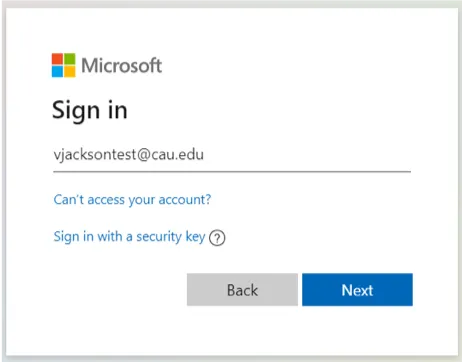
 

Microsoft login screen showing email input with "Back" and "Next" buttons.
  1. Enter your e-mail password, and click Sign in.
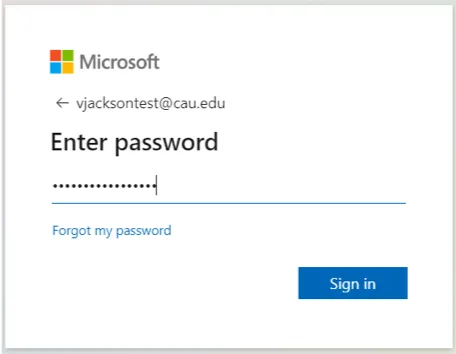
 

Microsoft login page with password entry field.
  1. When the message below appears, click Next.
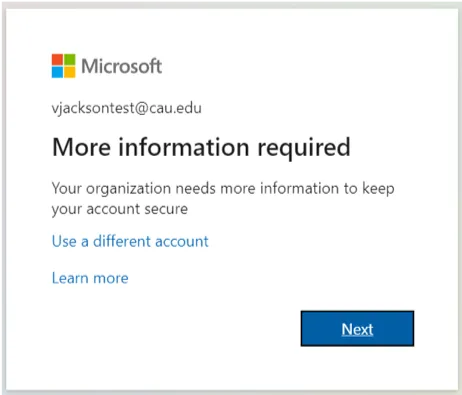
 

Microsoft login screen with "More information required."
  1. When the message below appears, click the dropdown arrow next to “Authentication phone” and select “Mobile app.” NOTE:  Mobile app has already been selected in this dialog.  Click the radio button next to “Receive notifications for verification.”  Click Set up to configure the mobile app.
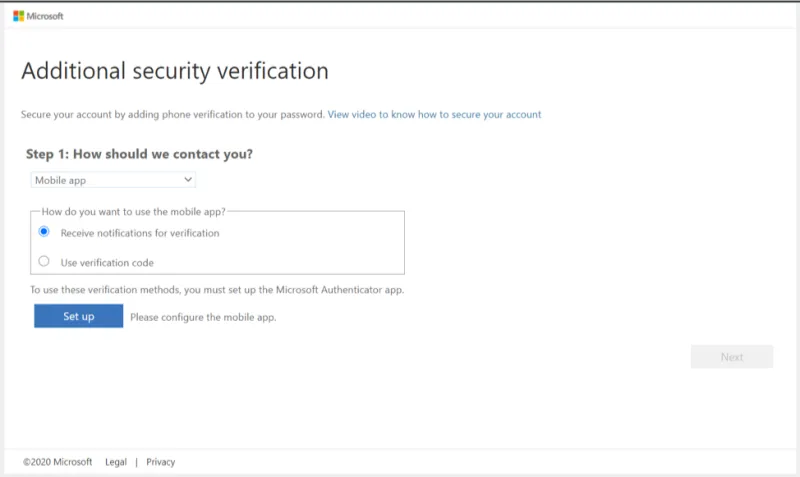
 

Security verification screen with email and app options.
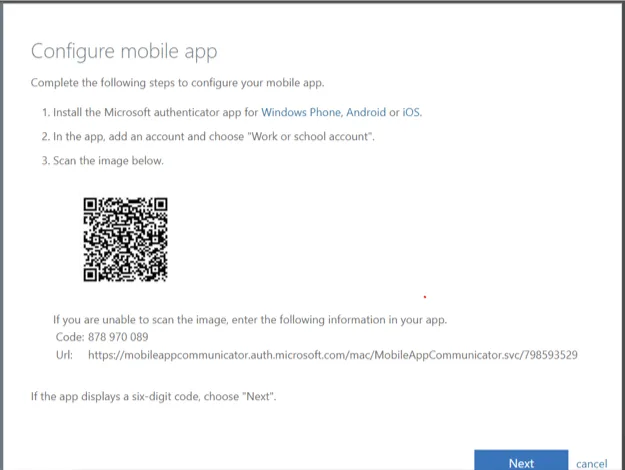
  1. When the message below appears, install the appropriate Microsoft authenticator app based on the type of phone you have.
  • Windows phone – install from Microsoft store
  • Android – install from Google Play store
  • iOS – install from Apple App store
QR code with setup instructions for a mobile app on screen.


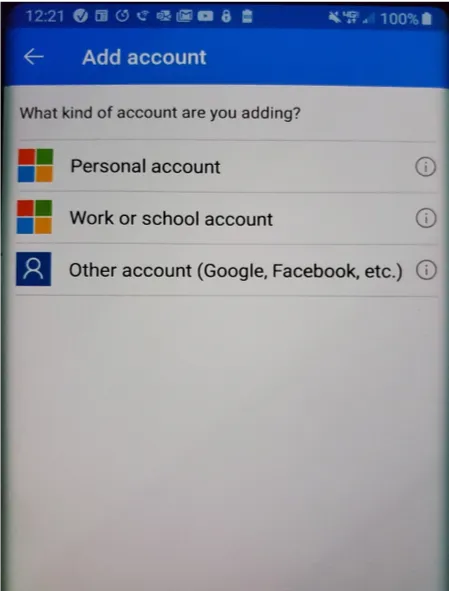
  1. After installing the app, open it, click the three dots in the top right corner of the screen, select Add account and select “Work or school account.”
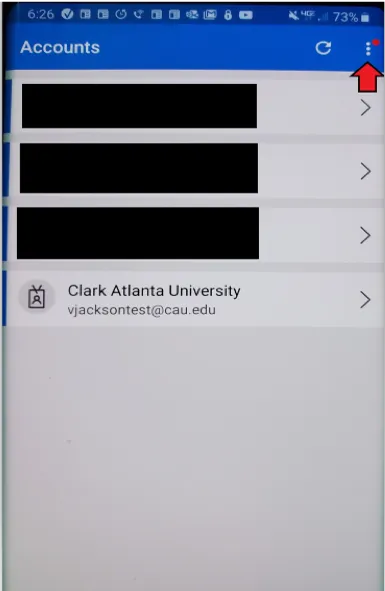
Account list on a mobile screen, third shows Clark Atlanta University.
Add account options: Personal, Work, Other.
  1. Use your phone to scan the QR code on your computer screen.
  2. Your account will be added to the Microsoft authenticator app on your phone.
  3. In the browser window on your computer, click Next.
  4. The following screen will display indicating that the mobile app has been configured. Click Next.
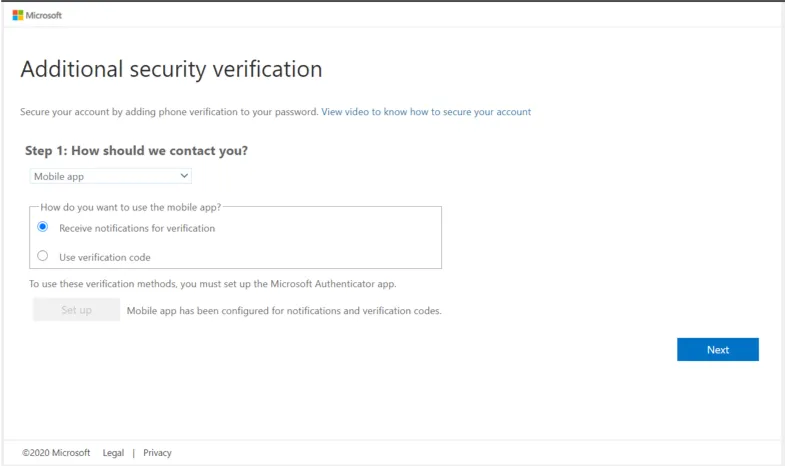
Security verification page with contact options, blue 'Next' button.

12. When this dialog appears, tap Approve on the notification on your phone.
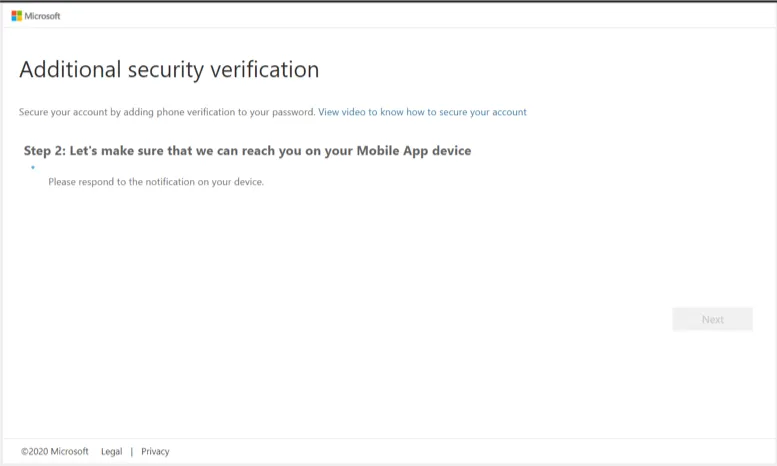
Verification process screen with step instructions.
  1. When this dialog appears, enter your mobile number, and click Done.
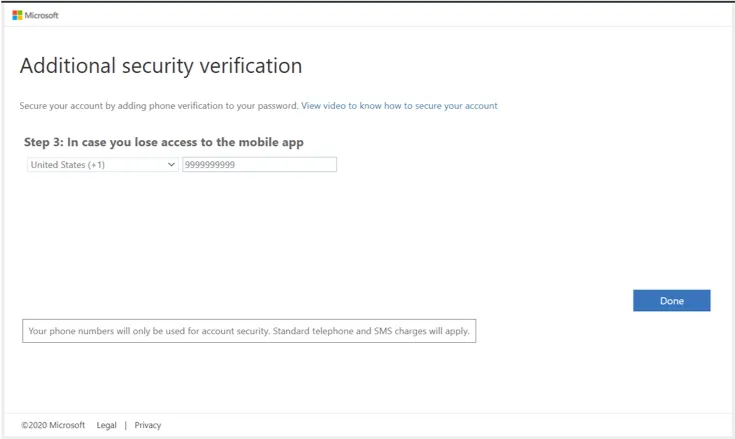
Security verification page with input field and Done button.
  1. You are now registered for MFA using the Microsoft authenticator app. You will be logged into the My Apps portal where you can access the applications that have been made available to you.  It will look similar to this page:
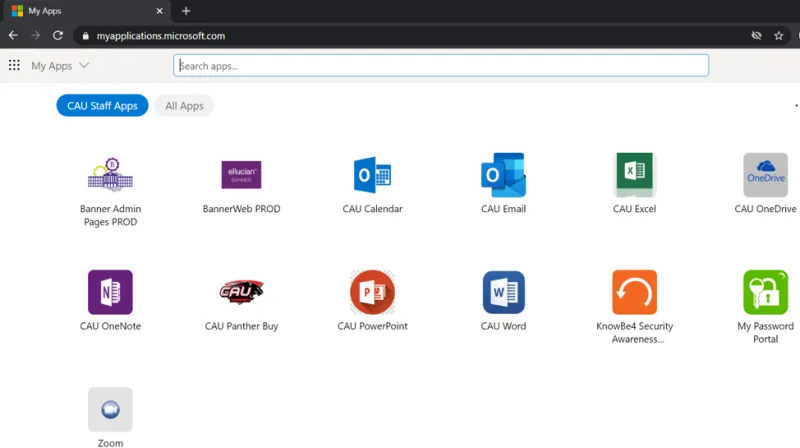
Online app icons displayed in a grid on a browser window.